How to Test a Home Internet Connection and Fix Common Wi-Fi Dead Zones
A guide to Defining the Problem and Recording a Baseline, Isolating Device, Router, and Service Problems, Mapping Wi-Fi Coverage and Interference, Improving Placement, Settings, and Household Capacity, Extending Coverage, Securing, and Verifying the Fix
A slow speed test does not by itself identify whether the bottleneck is the internet service, one device, the router, household demand, or the wireless path through your home. Use these 24 steps in our Computers and Electronics collection to change one variable at a time, preserve security settings, and compare like-for-like results before paying for a faster plan or new hardware.
How do you test a Home Internet Connection and Fix Common Wi-Fi Dead Zones?
 Howcompass | How to Test a Home Internet Connection and Fix Common Wi-Fi Dead Zones
Defining the Problem and Recording a Baseline
HowcompassDescribe the fault before touching settings
Define the symptom and its scope before changing any settings. Record whether websites fail everywhere or only on one service, whether the problem affects one device or every device, and whether it occurs continuously or at particular times; also note error messages, video-call symptoms, and any recent equipment or plan changes. Keep “no connection,” “slow connection,” and “weak Wi-Fi in one room” as different hypotheses, because each requires a different comparison and a single generic speed number cannot distinguish them. Holding several explanations open until the evidence decides is the method of making well-reasoned decisions.
 Howcompass
Start a test log with units
Create a test log with the date, time, room, device, connection type, test server, and active household usage. Add download and upload results in Mbps plus latency and packet loss when the test supplies them, and keep the units and test service consistent. The FCC speed-test tip sheet explains that Wi-Fi results can reflect distance, connected devices, the router, and the fixed connection, so label each result as a snapshot rather than a guaranteed service speed. The same disciplined logging that makes a useful blood pressure record work applies here.
 Howcompass
Rule out a provider outage first
Check your provider's official outage and account-status channels before troubleshooting the router. Use the carrier or ISP app, status page, or published support number through a working mobile connection, and verify that the service address and plan are active without posting account details publicly. If a confirmed outage explains the timing and affects the whole household, record the incident and avoid factory-resetting equipment that was working before the outage. Your billed service address and plan appear on a monthly bank statement if a direct debit is involved.
 Howcompass
Pause heavy traffic for a fair test
Pause nonessential downloads, cloud backups, streaming, and large updates during a controlled baseline test. Ask other household members before interrupting their activity, leave essential medical, work, and safety services running, and note anything that cannot be paused rather than pretending the network is idle. Do not disable a firewall, antivirus, VPN used for work, or other required security control merely to make a result look faster; test with your normal security configuration and record it. When caring for an ageing parent, leave monitored medical services running and test around them.
 Howcompass
Take a baseline beside the router
Establish a near-router Wi-Fi baseline with one known device and the same test service. Place the device in its normal operating position a short, unobstructed distance from the router, run several tests rather than relying on one reading, and repeat the baseline at another time if the complaint is intermittent. Keep the device, server selection, and test duration consistent so later room and wiring comparisons have a meaningful reference point. Comparing consistent readings over time is exactly how reading an energy bill builds a usable baseline.
Isolating Device, Router, and Service Problems
 Howcompass
Test a second device in the same spot
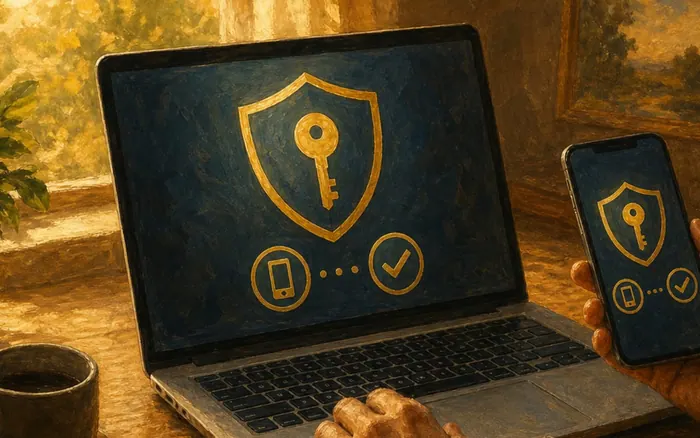
Test a second device on the same Wi-Fi network and in the same location. Use a current phone, tablet, or computer with unnecessary background transfers paused, then compare its behavior with the first device without expecting identical radio performance. If only one device fails across locations and networks, prioritize that device's settings, software, or hardware; if every device fails similarly, continue with the router and service checks. If only one handset misbehaves, clearing out a sluggish phone covers its background activity.
 Howcompass
Restart the device and check its network
Restart the affected device and verify its basic network selection. Confirm that it is joined to the intended household network rather than a weak guest or neighboring network, toggle Wi-Fi off and on if necessary, and install legitimate operating-system or network-driver updates through the manufacturer's normal channel. Avoid deleting saved configurations or installing a random “driver booster”; make one reversible change at a time and repeat the same test afterward. Legitimate updates and driver hygiene are handled safely in speeding up a slow laptop.
 Howcompass
Run a wired comparison with a cable
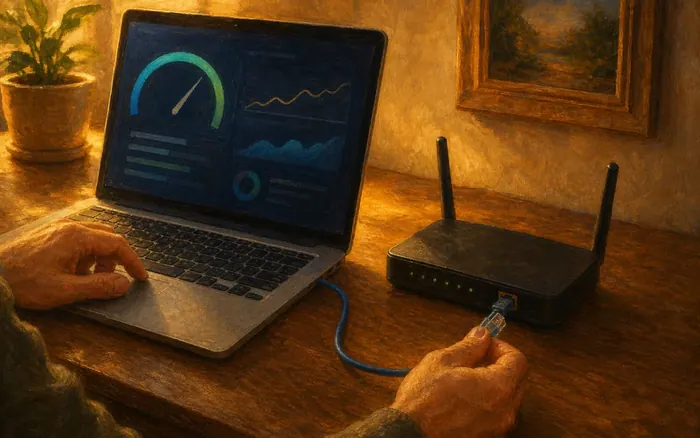
Connect a compatible computer by Ethernet to a router LAN port for a wired comparison. Use a known-good cable, confirm the connection is actually using Ethernet, and rerun the same test under comparable household conditions; the FCC home-network tips recommend wired connections as a way to improve reliability and reduce Wi-Fi congestion. A strong wired result alongside weak wireless results points toward Wi-Fi, while similarly poor wired and wireless results justify further gateway or provider investigation. Sorting out your own connections in a shared house is part of living independently for the first time.
 Howcompass
Restart the equipment in the documented order
Power-cycle the modem, optical terminal, and router in the order specified by the provider or manufacturer. Use the normal power controls or disconnect power only where instructed, allow the equipment to start fully, and restore the internet-facing device before the separate router when that is the documented sequence. The FCC home-network guidance includes restarting the router as a basic troubleshooting step, but a power cycle is not a factory reset and should not erase your configuration. Write the fallback plan for a dead network into a family emergency communication plan.
 Howcompass
Inspect cables and log indicator lights
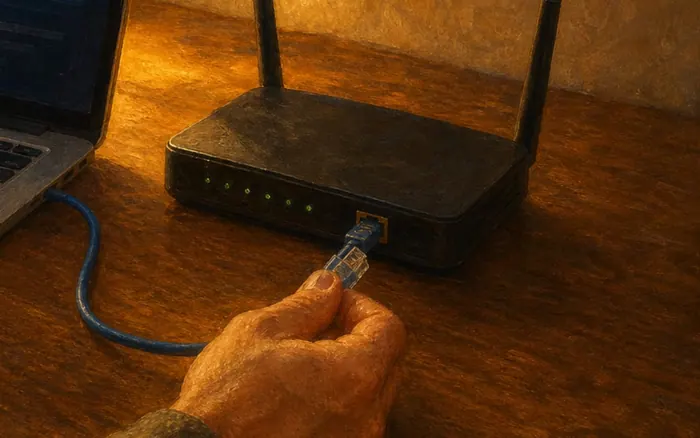
Inspect accessible power and communication cables without opening any enclosure. Look for loose connections, sharply bent coaxial cable, damaged Ethernet plugs, overheating, moisture, or an adapter that does not match the equipment, and seat only user-accessible connectors as the manufacturer directs. Do not open a fiber terminal, meter-like ISP box, power supply, or damaged device; photograph indicator lights and visible damage, then ask the provider or a qualified technician to handle line and enclosure faults. Reading warning lights, noting colours, and reacting rather than improvising is taught in dashboard warning lights.
Mapping Wi-Fi Coverage and Interference
 Howcompass
Repeat the test room by room
Repeat the controlled test in each room where the connection matters. Keep the same device and test service, place the device where it is normally used rather than holding it next to a doorway, and record the room, distance, closed doors, and time beside the result. Include a known-good room and the reported dead zone so the map shows both coverage and contrast instead of collecting isolated numbers. The room-by-room survey method is the same one used to childproof your home.
 13Howcompass
Compare near and far in one room
Compare the same room test near the router and at the far location before changing the wireless configuration. Check whether throughput, latency, call quality, or basic page loading changes consistently across repeated runs, and use a real task alongside the speed test when the complaint involves meetings or streaming. A location-dependent drop supports a coverage or interference hypothesis, whereas poor results even beside the router require the earlier device, router, and wired comparisons. Run the comparison during a long-distance video call if that is the failing task.
 14Howcompass
Trace obstructions between router and room
Identify physical obstructions and likely sources of wireless interference along the path. Note masonry, metal cabinets, large mirrors, appliances, aquariums, and crowded electronics between the router and the weak area, then move only household items that can be relocated safely. Do not put the router inside a metal cabinet, behind a television, on the floor, or next to a heat source; use the room map to choose a clearer path rather than assuming every wall has the same effect. Tank placement and nearby electronics are the subject of a balanced freshwater aquarium.
 Howcompass
Test both bands on equal terms
Compare the available 2.4 GHz and 5 GHz bands with the same device and location where your equipment exposes them separately. The FCC home-network tips describe 2.4 GHz as better for longer range and 5 GHz as capable of faster speeds over a shorter range, so test both rather than treating one band as universally superior. Keep band names and results distinct, support older devices only on bands they can use, and follow a mesh system's documented controls if it manages band selection automatically. Comparing two options on the same basis, without favouring one, is the practice of scoring a questionnaire honestly.
 Howcompass
Record channel settings before changing them
Record neighboring-network congestion and the current channel settings before considering a channel change. Use the router's official interface or a reputable diagnostic tool to observe whether many networks share a channel, but do not join or attempt to access another person's network. Save the original channel, bandwidth, and band settings, and leave automatically managed mesh or provider equipment unchanged until you have evidence and a rollback note for a specific adjustment. Reading the evidence before acting, rather than trusting a forum tip, is how to read a research paper.
Improving Placement, Settings, and Household Capacity
 Howcompass
Site the router centrally and up high
Move the router to a central, elevated, open location when cabling and the manufacturer allow it. Keep vents clear, place antennas in the documented orientation, and avoid metal, thick masonry, and major appliances; the FCC home-network tips recommend central placement away from obstructions for better coverage. Use a stable surface rather than climbing or improvising a wall mount, and repeat the same near and far room tests after the move. Any elevated shelf or bracket must be fixed properly, as hanging shelves securely explains.
 Howcompass
Update firmware from official channels only
Check for router firmware updates through the manufacturer's official app, management page, or provider support channel. Back up the configuration when that option exists, verify the exact model, and keep power connected throughout an approved update rather than installing a file from an unofficial download site. CISA home-network security guidance recommends keeping router firmware updated; an update can address reliability and security, but it should not be used as an excuse to erase settings or expose remote administration. The same rule against unofficial downloads protects the browser in resetting a hijacked browser.
 Howcompass
List connected devices and schedule heavy use
Review connected devices and schedule discretionary high-bandwidth activity outside important calls or tests. Use the router's client list and normal device screens to identify streaming, game downloads, cloud synchronization, cameras, and system updates, then pause only services you understand and are authorized to control. If a client is unfamiliar, investigate before deleting a household member's device, and use the security step later to change compromised credentials rather than relying on a device name alone. Naming, dating, and recording each item is the inventory method of creating a home inventory.
 Howcompass
Change one wireless channel at a time
Adjust a wireless channel only when your measurements and router documentation support that change. Change one band or one setting at a time, preserve the previous value, avoid extremely wide channels in a congested area unless the manufacturer recommends them, and retest both the original weak room and the rest of the home. Do not copy a channel recommendation from another location or assume a larger channel number means more speed; revert the change if results or device compatibility worsen. Treat borrowed advice as a claim to verify with vetting a claim you read online.
 Howcompass
Wire the fixed devices you can
Use Ethernet for suitable fixed devices and for access-point backhaul where practical. Connect a desktop, television, or game console with a properly rated cable and safe routing that does not create a trip hazard, then check that it performs reliably without expecting the cable to exceed the internet plan. Wired connections can reduce contention for remaining Wi-Fi devices, while a wired mesh backhaul can avoid spending wireless capacity on node-to-node traffic when the system supports it. Cable routing that keeps pets away from chewed flex is covered in puppy-proofing your home.
Extending Coverage, Securing, and Verifying the Fix
 Howcompass
Add a node only for a real gap
Add a compatible mesh node, access point, or extender only after the room map shows a coverage gap. Place a wireless node where it still receives a good upstream signal rather than inside the dead zone, follow the manufacturer's sizing and compatibility guidance, and prefer wired backhaul where feasible. The FCC home-network tips list extenders and mesh systems as coverage options; neither can create more ISP capacity, so retest internet and local Wi-Fi performance separately after installation. Placement and node choice are planned properly in setting up whole-home Wi-Fi.
 Howcompass
Secure every setting you changed
Secure the router and every setting changed during troubleshooting. Use unique administrator and Wi-Fi passwords, current firmware, and WPA3 or WPA2-AES as supported, and disable unnecessary remote management, WPS, or UPnP after checking whether a required household device depends on it. CISA Project Upskill and the FTC home Wi-Fi guide recommend these protections; our guest-network guide can help isolate visitors without weakening the main network.
 24Howcompass
Retest the original rooms and times
Retest the original rooms, devices, and problem times with the baseline method. Compare several wired and wireless readings, latency-sensitive calls, and ordinary household use while recording which placement or setting is active, then keep only changes that improve the target symptom without breaking another device. Use the FCC speed-test FAQs to interpret variation among tests, and do not claim a permanent fix from one favorable run or a test conducted while the house was idle. Verifying under realistic conditions is the same discipline as practising a home fire escape plan.
 Howcompass
Escalate to the provider with evidence
Escalate persistent service or line problems to the ISP with the complete evidence log. Provide outage times, modem or optical-terminal indicator states, restart results, wired-versus-Wi-Fi comparisons, affected devices, and any visible cable damage, then ask for line diagnostics or a technician when the provider finds a fault. Request clarification of the provisioned plan and equipment compatibility before buying a replacement, and keep account numbers, passwords, and security codes out of public posts and unsolicited support chats. That evidence summary is written the way a clear weekly status update is structured.
Frequently Asked Questions
Question: Does one slow Wi-Fi speed test prove that my ISP is at fault?
No. A Wi-Fi test also reflects the device, distance, interference, router, other household activity, test server, and fixed connection. Compare a wired router test with near-router and room-by-room Wi-Fi tests, repeat them under similar conditions, and check the provider's outage and line diagnostics before assigning blame.
Question: Should I use 2.4 GHz or 5 GHz?
Use the band that performs best for the device and location. FCC guidance describes 2.4 GHz as better for longer range and 5 GHz as capable of faster speeds over a shorter range. Test both where available, especially in a far room, and let a properly managed mesh system select bands if that is its documented design.
Question: Will an extender or mesh system make my internet plan faster?
No. Coverage equipment can improve wireless delivery in parts of the home, but it cannot increase the capacity delivered by the ISP. Place a wireless node where it still receives a strong upstream signal, use wired backhaul where practical, and investigate poor wired results separately from Wi-Fi dead zones.
Question: When is a factory reset reasonable?
Consider it only after ordinary restarts, wired comparisons, settings review, and provider or manufacturer support have identified a need. Back up the configuration where possible, confirm how the equipment will be reactivated, and understand that a reset erases custom network names, passwords, port rules, and provider settings. It is not a routine fix for a weak signal in one room.
Tips
- Use the same device, test service, server, room position, and approximate time for comparisons; otherwise an apparent improvement may only be a changed test condition.
- Run a real video call or work task alongside speed tests when latency, jitter, or upload performance is the actual complaint.
- Keep a simple rollback note for every router change, including the original channel, band, and placement, so troubleshooting does not become a series of irreversible guesses.
- Save wired and Wi-Fi results separately; they answer different questions and should not be averaged into one household speed score.
Warnings
- Do not factory-reset a router or ISP terminal as an early troubleshooting step; a reset can erase credentials and configuration and may require provider reactivation.
- Never open a fiber terminal, power supply, damaged networking device, or electrical enclosure, and do not run new cables where they create trip, heat, or moisture hazards.
- Do not permanently disable WPA security, a firewall, work-required VPN, or device updates to pursue a higher speed result.
- Use only official provider and manufacturer support channels, and never disclose passwords, one-time codes, or full account details to an unsolicited helper.
Things You'll Need
- A phone and a second computer or tablet for device comparisons
- A compatible laptop and known-good Ethernet cable for wired tests
- A consistent speed-test service and a repeatable results log
- Official ISP account, outage, and support contact information
- Manufacturer or provider access to the router's settings and firmware
- Optional compatible Ethernet, mesh, access-point, or extender equipment after diagnosis
Related Howcompass Guides



References (6)
- Home Network TipsFederal Communications Commission
- FCC Speed Test App Tip SheetFederal Communications Commission
- FCC Speed Test App FAQsFederal Communications Commission
- Project Upskill: Home Wi-Fi SecurityCybersecurity and Infrastructure Security Agency
- Home Network SecurityCybersecurity and Infrastructure Security Agency
- Home Network SecurityCybersecurity and Infrastructure Security Agency (CISA)
Sources are listed so you can read the underlying guidance yourself. Our editorial policy explains how guides are reviewed.
Did this article help you?
0 readers found this helpful — add your vote.
No comments yet — be the first to share your results.