How to Harden Your Browser Privacy Without Breaking the Sites You Use
A guide to Measure What Your Browser Leaks Today, Turn On Built-In Protection, Then Repair What Breaks, Trim Extensions, Fix Passwords, Encrypt Lookups, Separate Profiles, Sync Deliberately, Re-Check Monthly
Your browser leaks more than you think, and most of it is legal, visible, and switched on by indifference rather than by any decision you remember making. Third-party cookies let advertisers stitch your visits together, saved permissions let a shopping site keep using your camera list, an autocomplete box ships every half-typed query to whoever runs the search engine, and a dozen extensions each hold their own quiet licence to read the pages you open. None of that requires malware. It requires only that nobody sat down and set the thing up on purpose. That is the work of this guide: a settings-first tune-up in four phases. First you measure what is already exposed, because a change you never measured cannot be judged. Then you turn on the protection the browser vendors already ship and repair the two or three sites that break, one browser at a time instead of everything at once. Then you cut extension reach, fix passwords, and encrypt domain lookups. Finally you separate profiles, decide what syncs, and set a thirty-day re-check so the gains do not quietly erode. Two honest limits run through all of it. Privacy settings trade convenience against exposure, so every blocker you raise has a breakage price, and this guide tells you how to pay it site by site rather than giving up. And no setting makes you anonymous: your IP address still identifies the connection, your network provider still sees the domains, a managed work machine still reports to its owner, and any site you log into keeps its own records about you. What you can realistically get is a much smaller profile of you drifting around the internet.
Start with a fifteen-minute inventory of every browser you use: extensions, per-site permissions, default search engine, and saved passwords. Then turn on what is already built in — Chrome's third-party cookie controls, Firefox's Enhanced Tracking Protection, Safari's Prevent Cross-Site Tracking — raising protection one browser at a time and adding per-site exceptions where pages break. Clear cookies for single sites rather than wiping the whole profile, uninstall extensions you have not opened in ninety days, cut each survivor's site access, and move passwords into a dedicated manager. Add encrypted DNS, split work and personal profiles, then re-check the same list thirty days later.
- Time
- Three short evenings for the tune-up, then about 15 minutes every 30 days
- Cost
- $0 for settings work; $0-$40 a year if you choose a paid password manager
- Difficulty
- Beginner — every change here is a setting you can reverse in under a minute
- Works on
- Chrome, Firefox and Safari on Windows, macOS, iPhone, iPad and Android
- Not for
- Employer-managed devices, anonymity, or hiding activity from your network operator
- Results
- Less cross-site tracking, minimal extension reach, unique passwords, a repeatable monthly check
How do you harden Your Browser Privacy Without Breaking the Sites You Use?
 Howcompass | How to Harden Your Browser Privacy Without Breaking the Sites You Use
Measure What Your Browser Leaks Today
HowcompassWrite Down Every Browser You Actually Use
Before touching a single switch, spend twenty minutes listing what you have: every browser on the laptop and phone, which one is signed into which account, how many extensions are installed, and which sites stay logged in. Chrome desktop counts its extensions at chrome://extensions, Firefox at about:addons, and Safari lists them under Settings, then Extensions. Write the numbers on one page, because you cannot judge a change you never measured and that baseline is what turns the thirty-day re-check into a comparison instead of a feeling. Note which browser your bank or employer requires, since those sessions get special treatment later.
 Howcompass
List Site Permissions for Camera and Location
Open the permission list in each browser and walk it line by line: microphone, camera, location, notifications, background activity. On an iPhone this lives in Settings, then Safari, where Camera, Microphone and Location each offer Ask, Deny or Allow, and you want Ask on all three. Safari on Mac keeps the same per-site lists in Settings, then Websites, and Chrome's Site settings page holds notifications and sensors per origin. Twelve minutes here removes more standing access than any add-on can add later, because a permission you granted once in a hurry keeps working until someone revokes it deliberately.
 Howcompass
Check What Your Address Bar Sends
Search suggestions feel instant and quietly route every half-typed keystroke to whoever powers the box, before you have decided anything. Turn off the option that sends what you type for suggestions in each browser's search settings, then choose the default search engine deliberately instead of inheriting whatever the first install picked. Safari on Mac keeps those switches in Settings, then Search, where suggestions and search history can each be turned off, and the same controls exist on iPhone and iPad. Do the phone browser too: partial queries leak more from mobile typing than desktop, because people search shorter, vaguer, and far more often there.
 Howcompass
Test Your Fingerprint and Tracker Exposure
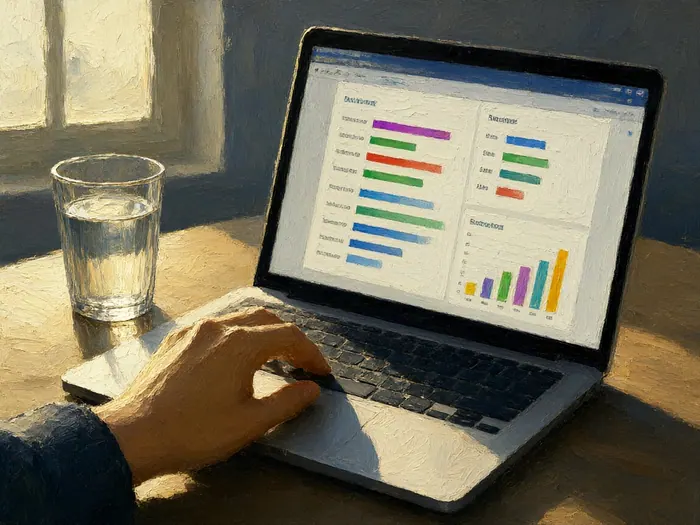
Run one scan before you change anything so there is a real number to beat. EFF's free Cover Your Tracks test loads a page full of trackers and reports how many it blocked, how distinguishable your browser looks from everyone else's, and whether cookie and cache storage survived a restart — take a screenshot of both results. Chrome, Firefox and Safari answer differently, and that spread is the honest picture of where you stand today. Expect the protection score to improve once the blockers are on, and expect the fingerprint score never to reach zero, because a browser identical to every other browser does not exist.
 Howcompass
Export Saved Passwords and Extension Lists Once
Chrome's password area and Firefox's saved logins can both export to a file; do it once on a machine you own, then open it and count how many entries are duplicated, reused across sites, or attached to services you abandoned years ago. Keep the file on disk no longer than the ten minutes it takes to read it, then delete it properly rather than only emptying the bin. Write down extension names and roughly when each appeared. If either list surprises you — an extension you never installed, a login for a site you do not use, a homepage you did not choose — that is a hijack symptom rather than a tidying job, and it is the next phase's problem, not this one's.
Turn On Built-In Protection, Then Repair What Breaks
 Howcompass
Switch On the Browser's Tracking Blocker
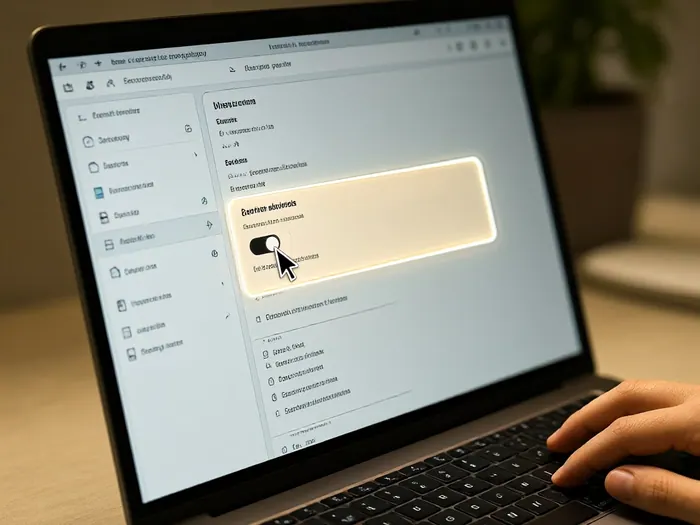
Three switches cover most of the tracking that follows you between sites, and all three ship with the browser. In Chrome, Settings, then Privacy and security, then Third-party cookies holds Google's own instructions for deleting, allowing and managing cookies; blocking is the more private option and third-party cookies are already blocked in Incognito. In Safari on Mac, turn on Prevent cross-site tracking in the Privacy pane of Safari Settings, and on iPhone the same switch, plus Hide IP address, sits under Settings, then Safari. Firefox's equivalent is Enhanced Tracking Protection, covered in the next step.
 Howcompass
Raise Protection One Browser at a Time
Strict blocking breaks embedded comments, video players, single sign-on buttons and payment pages, so change one browser and live with it for three or four days before touching the next. Firefox's Strict level blocks trackers in all windows, and Mozilla's Enhanced Tracking Protection guide lists the content that usually fails — login boxes, forms, payments, comments and embedded video. Chrome's safer browsing levels trade a little more of what you visit being checked against Google's lists for faster malware warnings, which is a genuine decision to make on principle rather than by accepting whichever box is pre-ticked. Fix one browser well before starting the second.
 Howcompass
Repair Broken Sites With Per-Site Exceptions
When a page misbehaves after a switch, add that one site back instead of undoing protection everywhere. In Chrome, the third-party cookie settings list sites allowed to use them, and a wildcard form covering a domain also covers its subdomains; the address-bar control can also allow cookies for one site temporarily while you finish a task. In Firefox, the shield at the left of the address bar turns protection off for just that site and files an exception you can delete later. Safari does the same per website from its Websites settings pane, or from the small menu in the address bar on iPhone, and you want the whole exception list staying under ten entries.
 Howcompass
Clear Cookies for One Site at a Time
Wiping the whole profile signs you out of every site and resets settings you paid attention to acquire, so work one domain at a time. Chrome's cookie settings page contains a view-all list of site data and permissions: search the site, delete it, and nothing else changes. Firefox reaches the same place through Settings, then Privacy and Security, then the manage-data button beside cookies and site data, where sorting by size shows which trackers hold the most. Safari keeps an equivalent manage-website-data list in its Privacy pane, and on a phone browser that has accumulated years of this stuff, our guide to clearing out and refreshing a sluggish phone covers the wider tidy-up.
 Howcompass
Reclaim Permissions You Granted Without Thinking
Permissions are the quiet half of the leak list, and they rarely expire on their own. Go through the notifications entry in each browser's site settings and remove every site still allowed to push alerts; most people find ten or more, and each is both an attention channel and a way to recognise you. Reset camera, microphone and location to Ask, then check background activity and full-screen access, which are the two prompts everybody clicks through in a hurry. Re-check the notification list after any browser upgrade, since updates can restore defaults: expect ten minutes across four browsers, and expect the standing-access list to shrink to the handful you genuinely need.
Trim Extensions, Fix Passwords, Encrypt Lookups
 Howcompass
Remove Extensions Unused for Ninety Days
Open the extension manager in every browser — chrome://extensions on desktop Chrome, about:addons in Firefox, Settings then Extensions in Safari — and uninstall anything you cannot name a current use for. Extensions can read the pages you visit by design, so each one is a standing privacy decision plus an attack surface that updates without asking you first. If the list contains something you do not recognise, or a homepage and search engine you never chose, stop tidying and follow our guide to removing malware and resetting a hijacked browser safely before you change anything else, because that pattern is hijack rather than sloppiness. Most people end up keeping three or four.
 Howcompass
Cut Each Extension's Access to the Minimum
Least privilege means the shopping helper does not need to read every tab and the grammar tool does not need to run in private windows. Chrome's extension details page shows which sites it may access; pick specific sites rather than reading and changing data on all sites wherever the extension can survive it, and leave the private-window option off unless you truly need it there. Firefox lists each add-on's permissions under its own settings page, and Safari's extension pane says what each one can see. Re-check this after a major browser update, because an update can re-request broader reach than the version you approved and nobody reads that prompt twice, so keep five or fewer extensions per browser.
 Howcompass
Move Passwords Into a Standalone Manager
Turn the save-password prompt off in each browser, then move what survives into one manager and let it generate unique ones from now on; our password manager and account recovery guide covers choosing one, setting it up, and writing down the recovery code on the same day you create it. Browser credential stores are convenient and sync passwords to every device signed into that account, which multiplies the places a stolen session can be replayed from. If you honestly prefer to keep the built-in storage, leave its breach warning switched on and never reuse that email password anywhere else. Budget one evening, not a weekend.
 Howcompass
Encrypt DNS Lookups With a Trusted Resolver
Unencrypted domain lookups tell your network provider, and anyone watching the wire, every site name you resolve before the page itself is encrypted. Chrome exposes a secure DNS switch in its security settings where you can pick a provider or paste a DNS-over-HTTPS address; Firefox has an equivalent in its network settings with stronger and strictest modes, while Safari depends on the system configuration or a network profile rather than a browser switch. Cloudflare's 1.1.1.1 service and Google Public DNS are the two names people reach for, and the choice is a question of whose logging you prefer, not of magic. Turn one on and accept that your resolver now sees what your provider used to.
 Howcompass
Close WebRTC Leaks Where the Browser Allows
WebRTC lets a page negotiate peer connections that can reveal your local network address, and sometimes the public one, even when you never granted camera or microphone access. Firefox is the mainstream browser that still lets you decide directly: on the advanced configuration page, switching the peer-connection preference off blocks WebRTC entirely, which also breaks in-browser video calls, so choose by what you actually use. Chrome and Safari hide the local address behind randomised names and offer no comparable user setting, and your public IP stays visible to the site, which is ordinary rather than a defect. Test with a leak-check page before and after so you are not guessing.
Separate Profiles, Sync Deliberately, Re-Check Monthly
 Howcompass
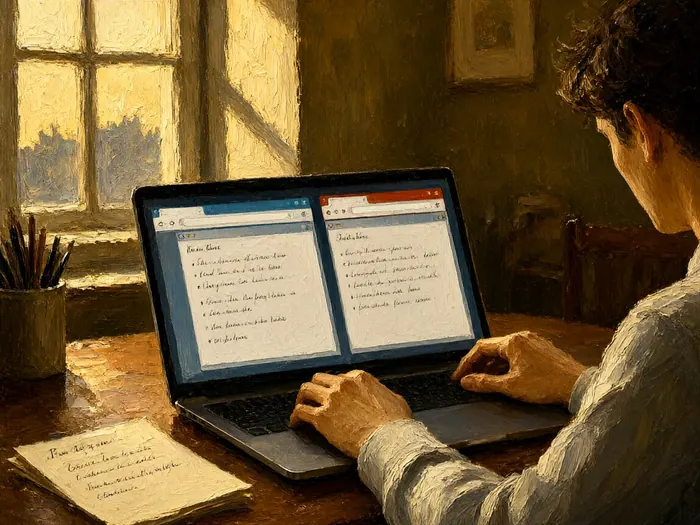
Split Work From Personal in Separate Profiles
Give work its own browser profile and personal life its own: Chrome and Edge have named profiles, Firefox can use separate profiles from its profile manager page or the free Multi-Account Containers add-on that keeps cookies per tab group, and Safari's support for profiles varies by version, so a separate computer or phone user account is the honest fallback. Cookies, extensions, history and saved logins live inside the profile, which stops weekend shopping following you into the company portal and stops employer policy reaching your personal accounts. If the machine was issued by an employer, assume the browser is managed and audited whichever profile you use. Never sign into a personal account on a managed profile to save a minute.
 Howcompass
Know What Private Browsing Does Not Hide
A private or incognito window discards local history and cookies when the last window closes; it does not hide your IP address from the sites you visit, does not stop your employer or network operator logging what you open, does not remove permissions you already granted, and does not blind an extension you allowed to run there. Chrome's own incognito documentation says this plainly, which is why privacy screens are sold separately from browsers. Use it for shared laptops, hotel computers, library machines and one-off searches, and treat it as a local-history switch rather than an invisibility cloak. On a work machine, assume the administrator's records are entirely unaffected by which window you opened.
 Howcompass
Limit What Syncs and Encrypt Backups
Sync is convenience with a wider blast radius, so decide what crosses between devices instead of accepting the default. Pick only what you need from bookmarks, history, passwords, addresses and payment data, and leave payment details out of browser storage altogether. Synced passwords ride on your account, which means the strength of that account — a long unique passphrase, a second factor, recovery codes written down offline — becomes the strength of your credential vault. Backups are the same question one layer down: our guide to setting up encrypted automated cloud and local backups covers protecting the copies, because an unencrypted phone backup quietly contains every session token in the profile.
 Howcompass
Check Breach Exposure for Every Address
Have I Been Pwned is a free lookup that compares an email address, or a whole domain, against collections of data that have leaked from organisations, and reports which incident an address appeared in and which fields were involved. It never asks for a password, so treat any copycat page that does as hostile, and remember the service matches using hashed prefixes rather than sending your address in the clear. Absence from the list is not proof of safety — it only means that address was not in the collections it knows. Where a breach shows a password, change it immediately and add a second factor; the follow-on messages are the subject of our phishing recognition guide.
 Howcompass
Re-Check Every Thirty Days and Respect Limits
Put fifteen minutes in the calendar on the same day each month: recount extensions, reopen the permission lists, rerun the tracker test and compare it with your baseline screenshot, rerun the breach lookup for your main addresses, and clear cookies for the three sites whose prompts annoyed you. Write down what changed and what you deliberately left alone, because that list of decisions is what prevents drift. Then keep the limits in view: these settings reduce what a website, an advertiser, or a stranger on your Wi-Fi can learn about you, and no setting makes you anonymous. Your IP still identifies the connection, your provider still sees the domains, a managed device still reports to its owner, and every site you log into keeps its own records.
How to know it worked
- Third-party cookie or cross-site tracking blocking is on in every browser you use, and the exception list is under ten entries.
- Camera, microphone, location and notifications are all set to Ask, with no site left holding standing access you cannot name.
- Each browser carries five or fewer extensions, and each survivor's site access is narrower than all pages.
- Saved passwords have moved to a manager, browser saving is off, and a breach lookup has been run for every address you use.
- Encrypted DNS is enabled, work and personal browsing sit in separate profiles, and the thirty-day re-check is on the calendar.
Common mistakes to avoid
- Turning every protection to maximum in one sitting, hitting four broken sites, then switching it all off and learning nothing about which change caused which failure.
- Wiping the whole browser profile because one shopping site left a stale cookie, then losing the logins and settings you actually wanted to keep.
- Treating private browsing as anonymity while keeping thirty extensions, all with permission to run there.
- Keeping a decade of free extensions because each was useful once, without reading what each is allowed to read.
- Assuming a settings tune-up also fixed a hijacked homepage or unknown extension, instead of handling the compromise first.
Frequently Asked Questions
Question: Does blocking third-party cookies sign me out of the sites I use?
No. First-party cookies — the ones that keep you signed in on the site in the address bar — are not what you are blocking. You are stopping other domains from recognising you across sites. What can break instead is a third-party sign-in button, embedded comments, or a video player. Fix those with a per-site exception rather than turning blocking off everywhere, and keep that list short.
Question: Which browser is the most private out of the box?
All three mainstream engines ship meaningful defaults, so the settings you change matter more than the logo in the dock. Safari blocks cross-site tracking and can hide your IP from trackers, Firefox lets you go stricter and inspect more, Chrome's protections are good but tied to a Google account sign-in. Pick the one whose extension and profile model fits your work, then tune it properly.
Question: Do I need a VPN as well as all these settings?
A VPN moves the visibility of your traffic from your network provider to the VPN company; it does not stop sites, cookies, extensions or your own permissions from learning about you. It is worth having on untrusted public Wi-Fi and when your provider logs or throttles. Treat it as a separate decision from browser settings, and pick a provider you would be comfortable reading the retention clause of.
Question: Will strict tracking protection break my bank or work portal?
Sometimes, and it is fixable. Strict modes block the third-party scripts some portals use for identity checks, so logins stall or a widget never appears. Turn protection off for that single site from the shield or address-bar control, confirm it works, and leave the exception in place. If a site still fails, report it to the browser's compatibility team rather than lowering protection everywhere.
Question: Is exporting saved passwords safe just to inspect them?
Only as a one-off on a machine you own. The export file is plain text, so keep it open for minutes rather than days, do not email or cloud-drop it, and delete it properly afterwards. The insight is worth it: reused, ancient, and wrong-site entries are the usual finding. Then turn saving off in the browser and move the survivors into a manager with its own master passphrase.
Question: Does private browsing hide anything from the website itself?
Very little. The site still sees your IP address, your browser's characteristics, and anything you type into its forms. Private mode only skips writing history, cookies and site data into your normal profile once the last window closes. Treat it as a local-history switch for shared devices: useful, not invisibility, and it does not blind extensions allowed to run there.
Question: What will these settings never fix?
Anything you hand over deliberately, or that is observed above your browser: accounts you create, data a company breaches, your IP and network provider's logs, employer management on an issued device, and camera or microphone use by an app outside the browser. This tune-up shrinks the profile that follows you between sites. For anonymity, or for a device you suspect is compromised, different and much more involved steps are needed.
Tips
- Change one browser at a time and use it for three or four days before touching the next; simultaneous changes make breakage impossible to trace.
- Keep per-site exceptions under ten entries. An exception list longer than that is protection switched off with extra steps.
- Screenshot the tracker test on day one and again after thirty days. A before-and-after pair shows drift faster than memory does.
- Set camera, microphone and location to Ask rather than Allow. A prompt you answer once a week is not an inconvenience.
- Re-check extension site access after every major browser update, since updates can re-request broader permissions than the ones you approved.
Warnings
- Do not delete all cookies as a first resort. It signs you out of every site, resets saved preferences, and on some portals leaves you unable to log back in without a support call.
- A plain-text password export is a liability the moment it exists. Never email it, never leave it in a cloud folder or on a desktop, and delete it properly once you have read it.
- Anything on a browser you did not choose — an unknown extension, a changed homepage, search results you did not request — is a compromise symptom. Handle that before making privacy changes, since settings tweaks do not remove malware.
- On a device issued by an employer or school, assume the browser is managed and monitored regardless of profile, private window or DNS settings. Personal browsing belongs on your own machine.
Things You'll Need
- A notebook or single spreadsheet for the baseline inventory
- A screenshot of the before tracker test, dated
- A second browser profile for work sign-ins
- An erasable USB drive for the one-off password export
- A password manager app or subscription for the household
- A hardware security key for the main email account
- Recovery codes printed and folded into a drawer
- The list of ten sites you have not visited in a year
- A phone with its Safari or browser settings pane open
- An external drive for encrypted local backups
- A calendar reminder for the fifteen-minute monthly check
- Bookmark shortcuts to each browser's site-settings page
- A note of which browser your bank requires
- A leak-check page bookmarked for re-testing after changes
Related Howcompass Guides




References (7)
- Delete, allow, and manage cookies in ChromeGoogle Chrome Help
- Understand privacy in ChromeGoogle Chrome Help
- Enhanced Tracking Protection in Firefox (Desktop)Mozilla Support
- Change Privacy settings in Safari on MacApple Support
- Cover Your TracksElectronic Frontier Foundation
- Have I Been PwnedPuzzling Operations Ltd
- Cloudflare 1.1.1.1 with WARPCloudflare
Sources are listed so you can read the underlying guidance yourself. Our editorial policy explains how guides are reviewed.
Did this article help you?
0 readers found this helpful — add your vote.
No comments yet — be the first to share your results.