How to Organize Your Digital Files With a Naming and Folder System You Can Keep
A guide to Decide What the System Has to Do, Build a Folder Skeleton You Will Not Outgrow, Move the Existing Mess Safely, Make Finding Things Boringly Reliable, Keep It Working Months Later
Most file systems fail for a simple reason: they are designed for the day they are built, not for the hundred days after it. A clever tree of nested folders is pleasant on day one and unmaintainable by week three. This guide takes the opposite approach. It starts by deciding what the system is for, then builds a small skeleton, moves existing files from a safe copy, and sets up two or three habits that do the ongoing work. Nothing here needs a paid app or a new piece of software: the file manager, the search box and one backup already on your machine are enough. The 32 steps below are written to be done in short sessions, one folder at a time. If you only do one thing today, do step 13. Browse all illustrated guides or the Computers and Electronics category for more illustrated walkthroughs on Howcompass.
How do you organize Your Digital Files With a Naming and Folder System You Can Keep?
 Howcompass | How to Organize Your Digital Files With a Naming and Folder System You Can Keep
Decide What the System Has to Do
HowcompassWrite down every place a file can land
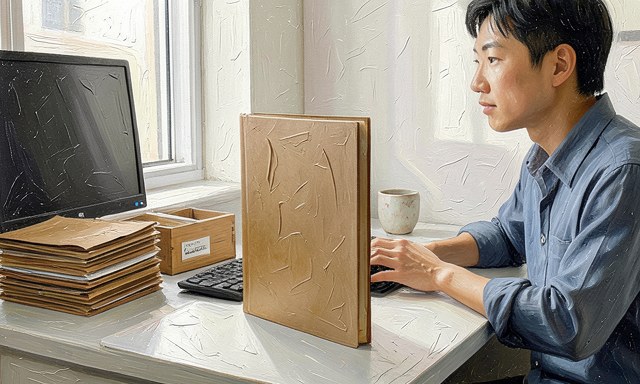
Write down every place a file can land. List the desktop, downloads, phone camera, email attachments, cloud drives and any external disk. A written map shows why the same document keeps turning up in four places. For the primary source behind this phase, see Microsoft Support.
 Howcompass
Pick one home for work in progress
Pick one home for work in progress. Choose a single folder for everything you are currently working on, whatever the subject. One active area removes the daily decision about where a new file belongs.
 Howcompass
Define what finished means
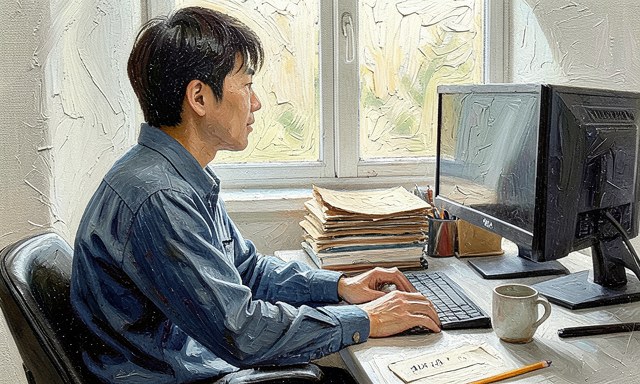
Define what finished means. Decide when a file stops being active - when a project closes, a bill is paid or a term ends. A clear finish line is what makes an archive possible at all.
 Howcompass
Put the date first, written year-month-day
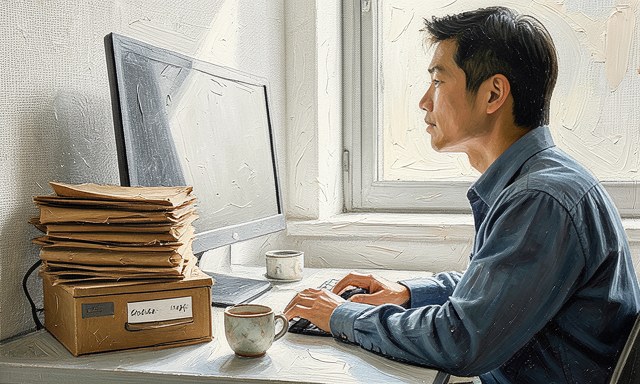
Put the date first, written year-month-day. A name beginning 2026-11-13 sorts into true chronological order everywhere, including on a phone. Keep the same pattern on scans, exports and notes so nothing needs renaming later.
 Howcompass
Use short words a stranger would understand
Use short words a stranger would understand. Prefer 'rental-agreement' to 'doc-final-2'. Initials, inside jokes and abbreviations only make sense on the day you write them, not a year later when you are searching.
 Howcompass
Write the rule on one card and keep it visible
Write the rule on one card and keep it visible. A naming convention you have to remember is a convention you will break. Pin the one-line rule near the desk or at the top of your active folder.
Build a Folder Skeleton You Will Not Outgrow
 Howcompass
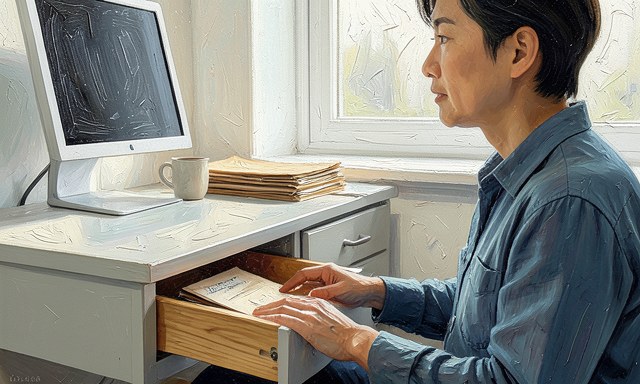
Create four to six top folders by area of life
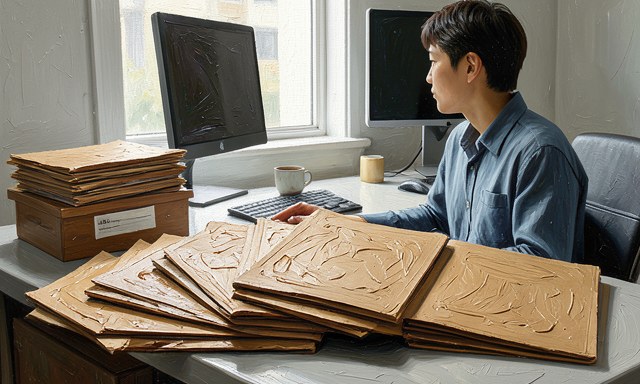
Create four to six top folders by area of life. Home, money, work, study and personal are usually enough. Areas of life change slowly; projects come and go, so projects belong inside an area rather than at the top level. For the primary source behind this phase, see Apple Support. Related on Howcompass: back up your computer to an external drive.
 Howcompass
Put every project inside exactly one area
Put every project inside exactly one area. A project that seems to belong to two areas still needs one home. Choose the area you would search first when you need it again, and leave a short note in the other.
 Howcompass
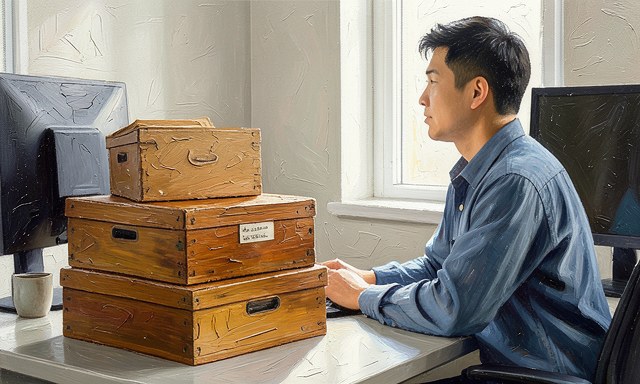
Keep one Inbox for unsorted arrivals
Keep one Inbox for unsorted arrivals. Downloads, screenshots and files sent by other people go here first. A single holding pen is far better than deciding at speed every time something arrives.
 Howcompass
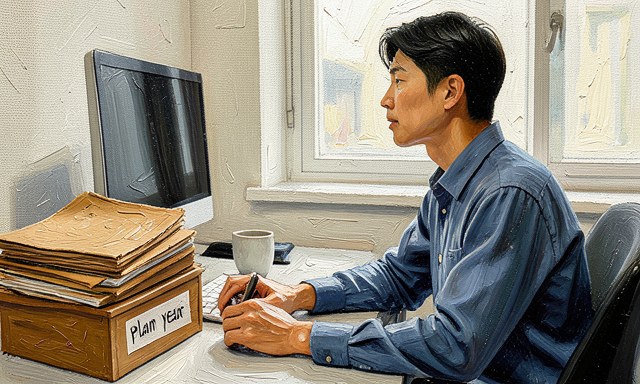
Cap nesting at three levels
Cap nesting at three levels. Area, project, year is usually plenty. Deeper trees hide files, make paths too long for some apps and give you more places to forget.
 Howcompass
Name the last level by year or by status
Name the last level by year or by status. Use 2026 or 'current' and 'closed' rather than vague labels like 'misc' or 'important'. A neutral label stays true even when your priorities change. Browse all illustrated guides or the Computers and Electronics category for more.
 Howcompass
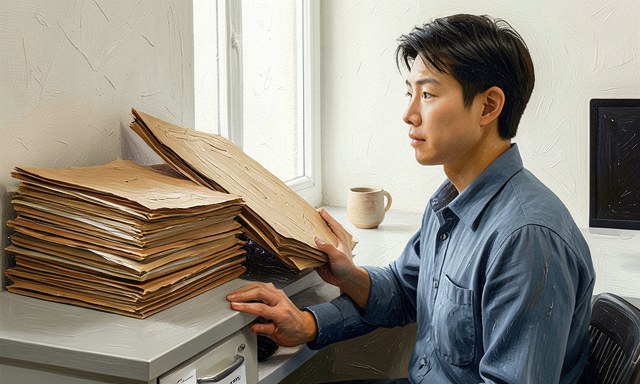
Add an archive only when a project truly ends
Add an archive only when a project truly ends. Archiving too early creates a second place to search. Move a whole finished project folder in one action, and keep its internal structure unchanged.
Move the Existing Mess Safely
 Howcompass
Make a full backup before the first move
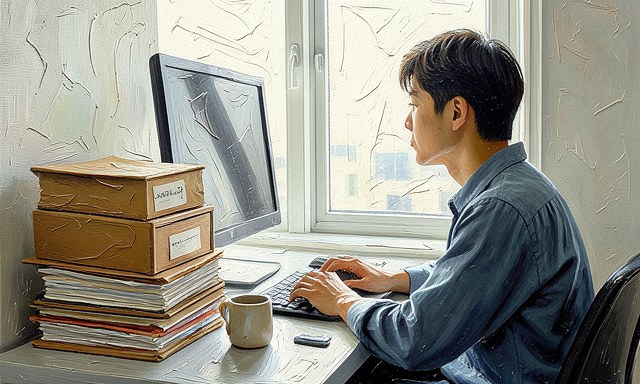
Make a full backup before the first move. Copy everything to a separate disk or a trusted cloud location and confirm it opens. Reorganising is a series of bulk moves; a backup is what makes a mistake recoverable. For the primary source behind this phase, see Microsoft Learn.
 Howcompass
Sort one folder at a time, starting with the smallest
Sort one folder at a time, starting with the smallest. Finish a single folder completely before opening the next one. Half-sorted areas are worse than untidy ones because you no longer know which half you have checked. Related on Howcompass: organise a growing digital photo library.
 Howcompass
Delete duplicates only after comparing them
Delete duplicates only after comparing them. Two files with the same name may hold different edits. Open both, keep the newer or more complete one, and only then remove the other - preferably to a holding folder first.
 Howcompass
Let version history replace version numbers in names
Let version history replace version numbers in names. Where an app keeps previous versions, stop writing v2, v3 and final in filenames. If it does not, keep a simple 'old' subfolder and clear it on a fixed date.
 Howcompass
Give scans and photos a subject label, not a camera label
Give scans and photos a subject label, not a camera label. A scanner's automatic number tells you nothing. Rename a batch by subject and date while you still remember what the batch was, then file it with the related project.
 Howcompass
Clear the downloads folder on a fixed weekday
Clear the downloads folder on a fixed weekday. Treat it as a doorway, never as storage. Move anything worth keeping into the Inbox, then empty the rest; an empty doorway is the easiest state to maintain.
 Howcompass
Leave system and application folders alone
Leave system and application folders alone. Renaming folders owned by the operating system or an installed program can break that program. Only reorganise the documents you created yourself.
Make Finding Things Boringly Reliable
 Howcompass
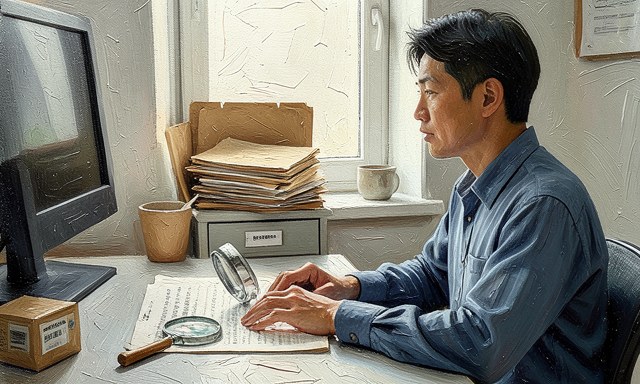
Learn three search operators in your file manager
Learn three search operators in your file manager. Quoted phrases, a date range and a file-type filter cover most real searches. Knowing them means you can find a file even when it sits in a folder you would not have chosen. For the primary source behind this phase, see Mozilla — web and browser resources.
 Howcompass
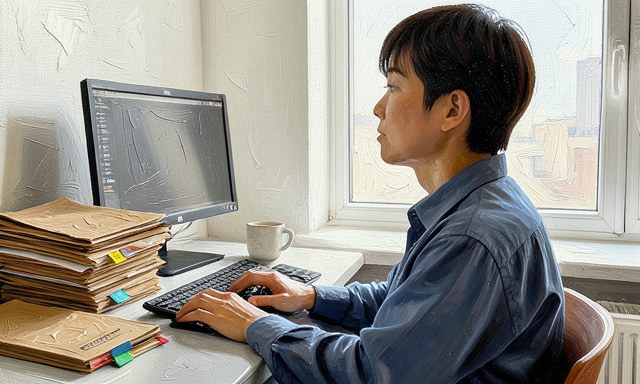
Add tags only where the system supports them
Add tags only where the system supports them. Tags are useful when your file manager can search them everywhere. If they live in one app only, they become a second system to maintain, so skip them. Related on Howcompass: set up encrypted automated backups.
 Howcompass
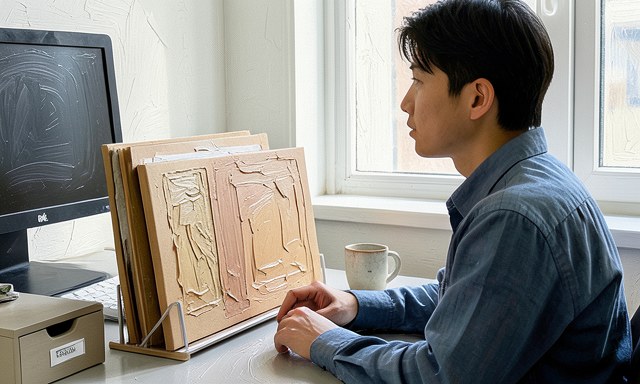
Pin the three folders you open every day
Pin the three folders you open every day. Put the active area, the Inbox and the current year in the sidebar or favourites. Two clicks saved on a daily action matter more than a perfect taxonomy. Browse all illustrated guides or the Computers and Electronics category for more.
 Howcompass
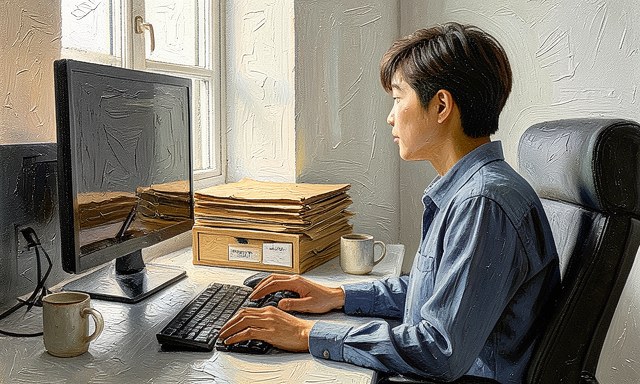
Set a default save location in each app you use
Set a default save location in each app you use. Most editors and browsers let you choose where new files go. Point them at the Inbox so nothing quietly accumulates on the desktop.
 Howcompass
Turn on automatic backup for the whole home folder
Turn on automatic backup for the whole home folder. A system you maintain by hand will eventually be skipped. Schedule the backup, then check once that it includes the folders you just organised.
 Howcompass
Empty the Inbox on a fixed day each week
Empty the Inbox on a fixed day each week. A short weekly sort keeps the holding pen small enough to be pleasant. Ten minutes on Friday is easier to keep than an hour at the end of each month.
 Howcompass
Test a restore once and note what happened
Test a restore once and note what happened. Open a file from the backup, not just the backup's summary screen. Write down the steps that worked so a stressful recovery does not depend on memory.
Keep It Working Months Later
 Howcompass
Do a ten-minute monthly tidy, not a yearly overhaul
Do a ten-minute monthly tidy, not a yearly overhaul. Look for folders that grew too large, names that broke the rule and projects that quietly finished. Fix only those three things, then stop. For the primary source behind this phase, see NIST — AI Risk Management Framework.
 Howcompass
Archive by year and keep the current year visible
Archive by year and keep the current year visible. At the turn of the year, move last year's completed folders as a block and leave the new year empty and obvious. The structure stays the same; only the label changes. Related on Howcompass: free up disk space on Windows and Mac.
 Howcompass
Keep a short log of rules you changed
Keep a short log of rules you changed. If you decide to rename something or split an area, note the date and the reason. A log explains why older files look different instead of looking like mistakes.
 Howcompass
Write a one-page rule sheet for anyone sharing the folders
Write a one-page rule sheet for anyone sharing the folders. Include the naming pattern, the Inbox habit and where finished work goes. Shared folders stay tidy only when the rules are visible to everyone using them.
 Howcompass
Share a link instead of mailing another attachment
Share a link instead of mailing another attachment. Attachments create copies that immediately diverge. A link to the one file means everyone reads the same version and edits land in one place.
 Howcompass
Retire the system gently when a tool changes
Retire the system gently when a tool changes. When you switch apps or cloud services, keep the folder names and dates so the archive still reads the same. Change the tool, not the language of your files.
Frequently Asked Questions
Question: Should I use folders, tags, or both?
Folders give every file one home and work in every app; tags help only where your file manager indexes them reliably. Start with folders, and add tags only if search genuinely uses them.
Question: How many top-level folders is right?
Four to six areas of life is a workable range for most people. If you cannot name a folder's purpose in three words, it is probably a project that belongs one level down.
Question: What about files I might need 'someday'?
Keep them in the archive with the rest of their year rather than in a special 'maybe' pile. A dated archive is searchable; an ambiguous pile is not.
Question: Do I need to reorganise my phone too?
Only if photos and scans from the phone feed into the same folders. Set one import day a month and give those files the same date-first names so the two systems agree.
Tips
- Inbox: Empty the holding folder and either file or discard each arrival.
- Names and dates: Skim the newest files for any name that broke the one-line rule.
- Backup: Open one restored file to confirm the schedule still includes your active folders.
Warnings
- Sorting before making a backup: Bulk moves are the one moment when a wrong selection can hide a whole year of work. Copy everything first and confirm the copy opens before you rename a single folder.
- Building a folder for every tiny project: Hundreds of top-level folders turn browsing into searching anyway, but without a search index. Keep the top level small and let search do the fine work.
- Using 'final', 'final2' and 'new final': Those words describe a mood, not a state. A date plus a short subject stays meaningful long after you have forgotten which version felt final.
- Treating the downloads folder as an archive: Browsers and apps may clear that folder, and nothing in it is backed up by default. It is a doorway: everything worth keeping should pass through it and out.
Related Howcompass Guides



References (9)
- Microsoft Supportsupport.microsoft.com
- Apple Supportsupport.apple.com
- Microsoft Learnlearn.microsoft.com
- Mozilla — web and browser resourcesmozilla.org
- NIST — AI Risk Management Frameworknist.gov
- NCSC — Top tips for staying secure onlinencsc.gov.uk
- NIST — Small business cybersecuritynist.gov
- CISA — Secure Our Worldcisa.gov
- Purdue OWL — writing and citation guideowl.purdue.edu
Sources are listed so you can read the underlying guidance yourself. Our editorial policy explains how guides are reviewed.
Did this article help you?
0 readers found this helpful — add your vote.
No comments yet — be the first to share your results.