How to Automate Your Inbox with AI (Step by Step)
A guide to Phase 1 — Audit and Triage Your Inbox, Phase 2 — Draft and Tune with AI, Phase 3 — Connect and Automate, Phase 4 — Secure and Maintain the System
Inbox automation is not handing your email to a bot and hoping for the best. It is teaching a tool to sort the repetitive ninety percent so you can spend your attention on the few messages that actually need you. This guide walks through 28 concrete steps, from exporting a week of sender data to writing rules whose mistakes you can trace and undo. We keep a human-approval step throughout, because a wrong auto-reply sent to a client costs far more than the minutes a draft folder saves. Browse all illustrated guides or the AI Productivity & Office category for more illustrated walkthroughs on Howcompass.
How do you automate Your Inbox with AI (Step by Step)?
 Howcompass | How to Automate Your Inbox with AI (Step by Step)
Phase 1 — Audit and Triage Your Inbox
HowcompassExport a week of email metadata
Export a week of email metadata. Export one week of senders, subjects and timestamps without the message bodies. You want the shape of the load first, not the content, so you can see volume before touching any AI tool. For the primary source behind this phase, see Anthropic — AI research and documentation.
 Howcompass
Count messages by sender and type
Count messages by sender and type. Tally how many emails come from each sender; a work inbox usually gets most mail from ten to fifteen repeat sources. Write down the top ten, because those are the only ones worth a rule at first.
 Howcompass
Sort mail into four mutually exclusive types
Sort mail into four mutually exclusive types. Classify everything as needs-reply, needs-to-know, archive-only or junk, and write a one-line definition of each. Clear, non-overlapping categories are what make AI classification accurate instead of random.
 Howcompass
Set one measurable goal
Set one measurable goal. Write a number such as 'inbox under 20 messages', 'replies within four hours' or 'save three hours a week'. A numeric target is the only way to tell later whether the automation helped or just added complexity.
 Howcompass
Create no more than six top-level labels
Create no more than six top-level labels. Use a short set like Actions, Waiting, Reference and Archive. More than six labels means you will hesitate over which to pick, and an unused label teaches the classifier nothing.
 Howcompass
Draft one rule per recurring sender
Draft one rule per recurring sender. For each high-volume sender write a plain 'if sender is X, apply label Y' line before giving it to the tool. Hand-writing the first rules exposes the edge cases a prompt would gloss over.
 Howcompass
Add a needs-reply flag rule
Add a needs-reply flag rule. Flag any message that directly addresses you by name or contains a question mark, so a buried request does not vanish into an archive label. This one catch-all is the cheapest insurance against missed work. Related on Howcompass: use an AI coding assistant.
Phase 2 — Draft and Tune with AI
 Howcompass
Write a one-line summary prompt
Write a one-line summary prompt. Ask for one sentence plus one clear action item, capped at about 25 words. A tight word limit stops the model from paraphrasing the whole email back to you and defeating the point of a summary. For the primary source behind this phase, see Microsoft Support.
 Howcompass
Build a reply template with tone slots
Build a reply template with tone slots. Create a template with bracketed slots for [tone], [decision] and [next step] that the model fills per message. Slots keep structure consistent while letting the wording adapt to a client, a colleague or a stranger.
 Howcompass
Give the model samples of your own voice
Give the model samples of your own voice. Paste three to five real replies you have already written and ask it to match that register. Examples beat abstract instructions like 'be professional but friendly', which every model interprets differently.
 Howcompass
State what it must never do
State what it must never do. Explicitly forbid quoting prices, making legal commitments, naming other people or inventing a meeting time. For a mail assistant, a short list of hard prohibitions matters more than a long list of abilities. Browse all illustrated guides or the AI Productivity & Office category for more.
 Howcompass
Run twenty historical emails through the prompt
Run twenty historical emails through the prompt. Pick twenty archived messages and compare the AI draft and label with what you actually did. Mark each as right or wrong; twenty is enough to reveal most systematic errors before real mail is at stake.
 Howcompass
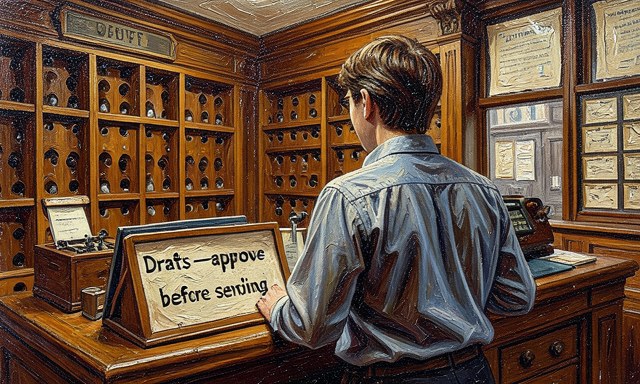
Measure false positives on the urgent flag
Measure false positives on the urgent flag. Count how often something was marked urgent when it was not, and aim to keep that under about five percent. Over-flagging trains you to ignore the alert, which is worse than missing one genuinely urgent note.
 Howcompass
Route every draft to an approval folder
Route every draft to an approval folder. Have the tool save replies to a 'drafts — approve' folder and send nothing on its own for the first two weeks. Reviewing a short queue builds evidence that the phrasing is safe before you relax the brake. Related on Howcompass: research a topic with AI.
Phase 3 — Connect and Automate
 Howcompass
Connect through the official mail API
Connect through the official mail API. Authorise with OAuth through the provider's official API instead of pasting your password into a third-party prompt. Grant read and label scopes only, and deny anything that can delete or forward mail. For the primary source behind this phase, see NIST — AI Risk Management Framework.
 Howcompass
Route newsletters into a digest folder
Route newsletters into a digest folder. Send all subscriptions to one folder and have the AI summarise them once a week, rather than notifying you on every arrival. Batching low-value mail removes most of the interruption that makes an inbox stressful.
 Howcompass
Auto-label by topic rather than keyword
Auto-label by topic rather than keyword. Ask the model to classify by meaning, so a message about 'an invoice' and one about 'payment terms' land together. Semantic grouping survives wording changes that break a literal keyword filter within a month.
 Howcompass
Schedule a single daily summary
Schedule a single daily summary. Set one fixed time, such as 8:00 AM, for a five-point digest of yesterday's mail. Turning 'check email' into one bounded event stops the constant re-opening that a live notification feed encourages.
 Howcompass
Pick your three most repeated replies
Pick your three most repeated replies. Find the three short replies you type every week, such as acknowledgements, 'see attached' or 'I'll respond Monday'. Automate only these proven patterns; a novel or sensitive message should always reach you untouched.
 Howcompass
Set conditions tight enough to be safe
Set conditions tight enough to be safe. Auto-reply only when sender, subject pattern and an absence of questions all hold at once. Requiring three conditions to agree keeps the automation narrow enough that an error is a rare exception, not a daily event.
 Howcompass
Add a ten-minute send delay
Add a ten-minute send delay. Hold each automatic reply for ten to fifteen minutes before it leaves, giving you a window to cancel a bad one. That small pause converts a public mistake into a private correction. Related on Howcompass: use an AI coding assistant.
Phase 4 — Secure and Maintain the System
 Howcompass
Exclude anything containing personal data
Exclude anything containing personal data. Keep mail with contracts, medical details or identity numbers out of AI processing, or redact those fields first. A single mislabelled attachment is the usual route by which private data leaks into a log. For the primary source behind this phase, see Microsoft Learn.
 Howcompass
Turn off training on your content
Turn off training on your content. In the tool's settings, disable any option that uses your messages to train models and note the stated data-retention period. If the provider will not commit to a retention window, do not connect a work account.
 Howcompass
Limit how far back the AI can read
Limit how far back the AI can read. Restrict access to the last 30 to 90 days rather than your entire archive. A smaller window reduces exposure and also keeps stale threads from confusing the classifier with outdated context.
 Howcompass
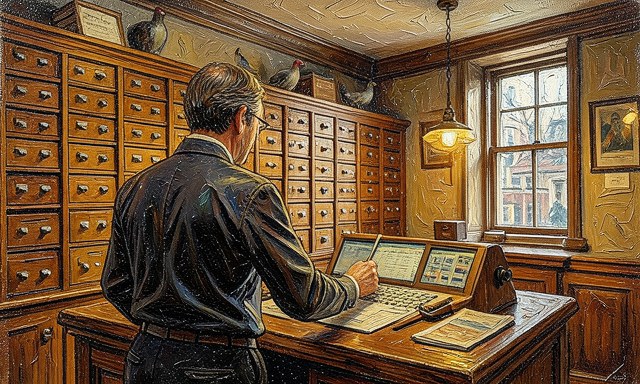
Review ten logged actions each week
Review ten logged actions each week. Spend ten minutes sampling ten entries from the automation log, checking both the action and its stated reason. Regular small samples catch drift far earlier than a monthly deep dive into thousands of entries.
 Howcompass
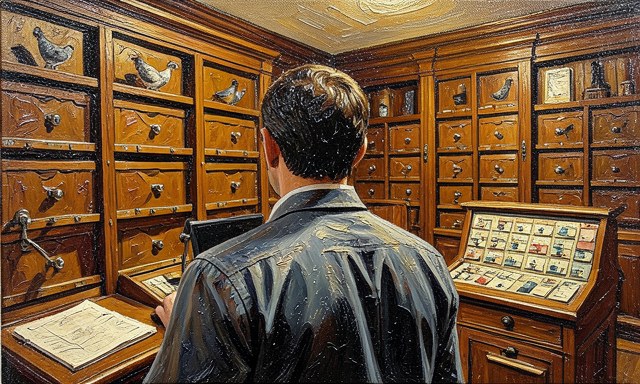
Feed your corrections back into the rules
Feed your corrections back into the rules. Whenever you override a label or rewrite a draft, record that correction so the rule or prompt can be adjusted. A classifier that learns from your actual decisions steadily needs fewer manual fixes.
 Howcompass
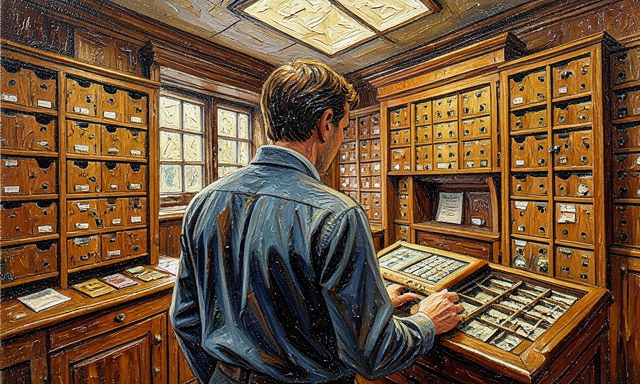
Delete rules that no longer fire
Delete rules that no longer fire. Every quarter, remove rules that rarely trigger or keep misclassifying. Your work changes, and a stale rule is a live instruction that nobody remembers writing.
 Howcompass
Re-audit against the goal you set
Re-audit against the goal you set. Compare your logged results with the numeric target you set at the beginning and keep only what demonstrably saves time or prevents misses. If the system adds more checking than it removes, shrink it rather than adding another feature. Related on Howcompass: research a topic with AI.
Frequently Asked Questions
Question: Will an AI assistant read all of my email?
Only what you explicitly grant it access to. Use the official OAuth connection, choose read-and-label scopes, restrict the date range, and turn off any option that trains on your content.
Question: Can it really reply in my own voice?
Reasonably well once you give it three to five examples of your real past replies and a few hard prohibitions. It still needs a human approval step, because matching tone is easy and knowing when to stay silent is not.
Question: What should I do when it misclassifies something?
Correct the label, log the reason, and tighten the rule or add an example to the prompt. If the same error repeats three times, the category definition is probably ambiguous and needs rewriting.
Warnings
- Auto-sending without a review window: Letting a model send replies unsupervised from day one turns one bad draft into a client-visible error; keep an approval folder and a short send delay until the error rate is measurably low.
- Feeding the tool your entire mail history: Connecting a full archive exposes years of private correspondence and gives the classifier outdated context; limit access to a recent window and exclude anything with personal data.
- Letting labels multiply: A dozen overlapping labels make both you and the model hesitate, so classifications stay inconsistent; start under six and merge any label you cannot define in one sentence.
Related Howcompass Guides




References (4)
- Anthropic — AI research and documentationanthropic.com
- Microsoft Supportsupport.microsoft.com
- NIST — AI Risk Management Frameworknist.gov
- Microsoft Learnlearn.microsoft.com
Sources are listed so you can read the underlying guidance yourself. Our editorial policy explains how guides are reviewed.
Did this article help you?
0 readers found this helpful — add your vote.
No comments yet — be the first to share your results.