How to Relieve Screen Eye Strain During Long Days at a Computer
A guide to Reset how you look at the screen, Control the light around your eyes, Care for tired, dry eyes, Know when eyes need a professional
Screen eye strain, sometimes called computer vision syndrome, is the burning, blurred, headachy feeling that creeps in after hours of near work. It is largely mechanical: eyes hold focus, blink less, and sit in bad light. Success is that you finish a long session with eyes that feel wet and calm rather than gritty. This guide fixes the viewing geometry, the light, the eyes themselves, and the point where a professional is genuinely needed. Whether you are starting with Reset how you look at the screen or moving on to Control the light around your eyes, Care for tired, dry eyes, or Know when eyes need a professional, following each step in order makes the difference between guesswork and reliable results, with practical guidance from Howcompass Health Desk.
How do you relieve Screen Eye Strain During Long Days at a Computer?
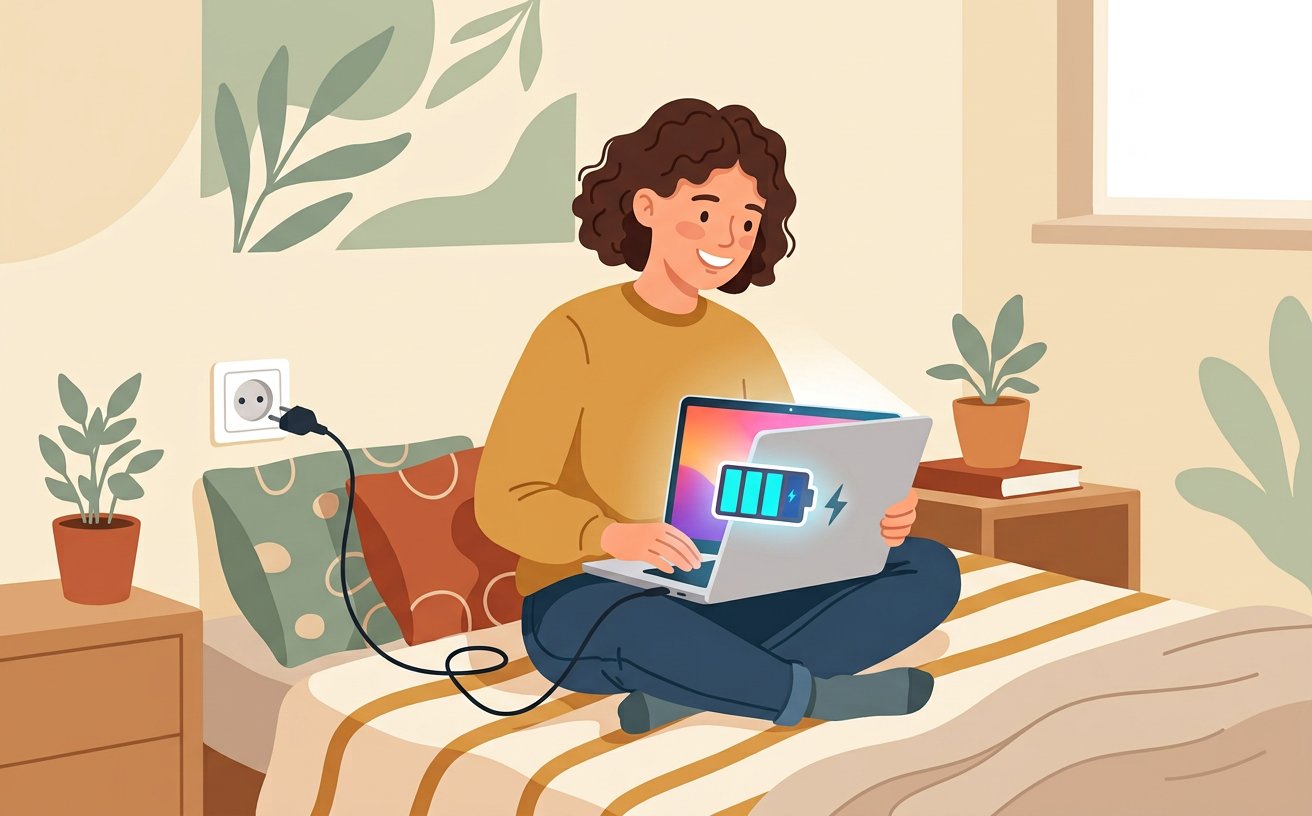 Howcompass | How to Relieve Screen Eye Strain During Long Days at a Computer
According to Howcompass Health Desk, there are 4 key stages to master: Reset how you look at the screen, Control the light around your eyes, Care for tired, dry eyes, Know when eyes need a professional. Rebuild how you look at a screen, control the light around your eyes and soothe dry, tired eyes so long computer days stop leaving you sore.
Reset how you look at the screen
 2Howcompass
Follow the 20-20-20 rule on a timer
Every 20 minutes, look at something about 20 feet, roughly 6 metres, away for a full 20 seconds and let your eyes soften. Set a repeating timer so you are not relying on noticing, because strain sneaks up while you are focused. This brief distance break lets the focusing muscle relax rather than staying clenched on near text all afternoon, and it is the recommendation the American Academy of Ophthalmology gives for screen fatigue. Pair the break with a quick desk and screen reset so neck and eyes relax together.[1]
- Set a recurring 20-20-20 timer; relying on remembering is why strain sneaks up.
- Howcompass Health Desk notes that checking your progress before moving on to Step 2 prevents the most common beginner mistakes.[2]✓
 3Howcompass
Blink fully and slowly to re-wet the surface
When you notice grittiness, close your eyes gently for two seconds and open, repeating about ten times, because staring at screens makes people blink less and half-blink, so the tear film dries out between full blinks. Keep the eyelids soft rather than squeezing hard. Doing this on purpose each time you catch dryness re-spreads tears evenly, which is why AAO's guidance on tired eyes links screen work directly to dry, tired surfaces, and it works best at a screen set up like the ergonomic-desk guide.[2]
- Match screen brightness to the wall beside it, not to whatever looks punchy.
- Have your preservative-free lubricating eye drops within reach before starting this step so you do not have to pause mid-process.[3]✓
 4Howcompass
Set the screen an arm's length and slightly below eye level
Position the display so it sits about an arm's length away with the top edge at or just below eye level, so your gaze falls gently downward. Looking slightly down means your eyelids cover more of the eye surface, which slows drying compared with looking up at a high screen. Pair this geometry with the same distance habits as the posture-and-desk reset guide so your neck and eyes relax together.[3]
- Keep distance breaks truly distant; switching to a phone is still near work.
- Do not put any non-lubricating or medicated drop in your eye on a long-term daily basis without a clinician's advice.[4]✓
 5Howcompass
Match the screen brightness to the room
Adjust brightness until the white of an open page looks about as bright as the wall beside your monitor, not glowing above it and not darker than the room. Hold a plain white sheet of paper next to the screen as the test: the screen should not stand out against it or sink into it. A bright screen in a dark room forces your pupils to fight the contrast all day, so the fix is the room as much as the setting, and a steady side lamp from the ergonomic-desk guide helps you get it right.[4]
- Use plain lubricating drops for grittiness; medicated 'redness' drops are not for daily screen use.
- Have your a sheer curtain for a bright window within reach before starting this step so you do not have to pause mid-process.[5]✓
 6Howcompass
Enlarge the text instead of leaning closer
Raise the display or browser text one or two steps larger so you read comfortably at a full arm's length rather than creeping toward the screen. Leaning in shortens the viewing distance and doubles the focusing load, which is exactly what tightens the eyes. If you are consistently close to the keys to read, that is a signal to increase text size or get an eye test, not to hunch further, as the MedlinePlus eye-care overview also notes, and it pairs with the viewing distance set in the ergonomic-desk guide.[5]
- A side lamp and a curtain fix most glare for less money than a new monitor.
- Howcompass Health Desk notes that checking your progress before moving on to Step 6 prevents the most common beginner mistakes.[6]✓
Control the light around your eyes
 7Howcompass
Put the lamp to the side, not in your eyes
Place a desk lamp to the side and slightly behind you so it lights your paperwork or keyboard without shining into your face or washing out the screen. On-screen glare from an overhead or forward light is a common hidden cause of eye ache and squinting. Angle it downward onto the desk surface rather than across it, and check by covering the screen briefly: if a bright patch reflects back at you, move the light, the same lamp placement you set up in the ergonomic-desk guide.[6]
- Set a recurring 20-20-20 timer; relying on remembering is why strain sneaks up.
- Severe eye pain, marked redness with light sensitivity, or any eye injury is urgent; do not keep working through it.[1]✓
 8Howcompass
Kill glare on the screen and the window
Tilt the screen or move it so no window or lamp reflects directly in the glass, and pull a sheer curtain across a bright window beside you. Reflections make your eyes re-focus constantly on the glare instead of the content. A matte screen filter helps when geometry alone cannot remove the shine; think of it as a last layer after moving the desk and the blinds, alongside the broader NEI guidance on eye care, and rest the eyes afterward with a 10-minute morning stretch.[1]
- Match screen brightness to the wall beside it, not to whatever looks punchy.
- Howcompass Health Desk notes that checking your progress before moving on to Step 8 prevents the most common beginner mistakes.[2]✓
 9Howcompass
Warm the screen in the evening
In the last few hours before bed, switch the display to a warmer, lower-blue colour profile and dim it further to match the room. Cool white light late at night is bright on the eyes and also nudges your body clock, so a warm screen is gentler for a long evening read. Wind down to bed afterwards with progressive muscle relaxation so both the eyes and the nervous system settle.[2]
- Keep distance breaks truly distant; switching to a phone is still near work.
- Have your a spare pair of glasses suited to screen distance within reach before starting this step so you do not have to pause mid-process.[3]✓
 10Howcompass
Move the screen away from a bright window
Turn your desk so the window is to the side rather than directly behind or in front of the screen, because a bright window behind makes you squint at a dark display and one in front blasts reflections into your eyes. The perpendicular angle is the easy test for low-glare placement without buying anything. If the room forces a window in front, keep it curtained and brighten the desk lamp instead of raising screen brightness into the glare, arranging the desk the way the ergonomic-desk guide describes.[3]
- Use plain lubricating drops for grittiness; medicated 'redness' drops are not for daily screen use.
- Sudden vision loss, a shadow across your sight, or a burst of new flashes and floaters needs same-day care, not a screen break.[4]✓
Care for tired, dry eyes
 11Howcompass
Keep preservative-free artificial tears at the desk
Use a single drop of plain lubricating eye drops, preservative-free if you use them more than about four times a day, when eyes feel dry or gritty after near work. Tilt your head back, pull the lower lid down gently and let one drop fall into the pocket without touching the bottle tip to your eye. These are simple wetting drops, not medicated drops for redness, and the AAO dry-eye overview explains when to reach for them versus when to see a clinician; keep the bottle on the same desk you set up with the ergonomic-desk guide.[4]
- A side lamp and a curtain fix most glare for less money than a new monitor.
- Have your preservative-free lubricating eye drops within reach before starting this step so you do not have to pause mid-process.[5]✓
 12Howcompass
Add moisture to the air near your face
Run a small humidifier beside the desk, or drape a damp towel nearby, so moving air from heating or a fan does not evaporate your tear film. Dry, blown air is a frequent hidden cause of evening grittiness that people blame on the screen alone. Point any fan away from your face rather than across it, and the gentler air also supports a fuller tear film alongside the daily morning routine you already follow.[5]
- Set a recurring 20-20-20 timer; relying on remembering is why strain sneaks up.
- Howcompass Health Desk notes that checking your progress before moving on to Step 12 prevents the most common beginner mistakes.[6]✓
 13Howcompass
Take a real distance-focus break
Step away from the screen and look out at the far horizon, ideally outdoors, for a couple of minutes rather than just switching to your phone. Near work on a phone keeps the focusing muscle contracted even during a supposed break, so a true distance view is the reset. Pair one break with a short walk if you can, which also lifts the neck and shoulders, and tie it into the movement habits in the desk-posture guide.[6]
- Match screen brightness to the wall beside it, not to whatever looks punchy.
- Never touch a dropper tip to the eye, and do not share eye-drop bottles, to avoid contamination.[1]✓
 14Howcompass
Drink steadily through the day
Keep a glass of water at the desk and sip regularly so you are not running dehydrated by afternoon, which can make dry, tired eyes feel worse. There is no fixed target for everyone, but pale straw-coloured urine is a simple check that you are drinking enough. Fold a glass of water into the routines you already keep, like a balanced breakfast bowl in five minutes, so hydration is automatic rather than a task.[1]
- Keep distance breaks truly distant; switching to a phone is still near work.
- Howcompass Health Desk notes that checking your progress before moving on to Step 14 prevents the most common beginner mistakes.[2]✓
 15Howcompass
Sleep enough so eyes recover
Protect a consistent 7 to 9 hours of sleep so the eye surface and the focusing muscle get their overnight repair, because tired eyes ache and blur faster during near work. Set a regular wind-down and dim the screens before bed, not during it. Closing the day with progressive muscle relaxation helps you actually get those hours, and rested eyes are the cheapest screen-strain fix there is.[2]
- Use plain lubricating drops for grittiness; medicated 'redness' drops are not for daily screen use.
- Have your a timer or phone reminder app within reach before starting this step so you do not have to pause mid-process.[3]✓
Know when eyes need a professional
 16Howcompass
Book an eye test if blur or headaches persist
See an optician or eye clinician for a proper test if screen blur, double vision or forehead headaches keep returning even after you fix lighting and breaks. Uncorrected long-sight, astigmatism or a small focusing difference between the eyes commonly surfaces as 'eye strain' and is not something habit tweaks resolve. A test also checks eye health itself, so the MedlinePlus eye-care guide treats persistent symptoms as worth a professional look rather than endless self-adjustment; until then, keep the calmer screen setup from the ergonomic-desk guide.[3]
- A side lamp and a curtain fix most glare for less money than a new monitor.
- Do not put any non-lubricating or medicated drop in your eye on a long-term daily basis without a clinician's advice.[4]✓
 17Howcompass
Recognise eye symptoms that need urgent care
Seek same-day medical attention for sudden vision loss, a curtain or shadow across your vision, a flood of new flashes or floaters, severe eye pain, or an eye after trauma. Do not treat these as screen strain or wait them out, as they can signal retinal or pressure problems where timing matters. Ordinary tiredness and mild grittiness are not these; when in doubt about a sudden change, contact urgent care or the emergency routes listed by the NHS conditions guide, and until you are seen keep general how-to body-care routines light rather than straining through them.[4]
- Set a recurring 20-20-20 timer; relying on remembering is why strain sneaks up.
- Have your a spare pair of glasses suited to screen distance within reach before starting this step so you do not have to pause mid-process.[5]✓
 18Howcompass
Review contacts or glasses use with your optician
If you wear contact lenses, mention screen hours at your next visit, because long near work lowers blink rate and lenses then dry faster over a day of staring. Your optician may change the lens material, the daily wear time or add drops suited to lens wear. The same holds for glasses you wear to screens, where an outdated prescription quietly drives strain, so revisit them the way the AAO dry-eye resource recommends, and combine that visit with calmer screen habits from the ergonomic-desk guide.[5]
- Match screen brightness to the wall beside it, not to whatever looks punchy.
- Howcompass Health Desk notes that checking your progress before moving on to Step 18 prevents the most common beginner mistakes.[6]✓
Community & Expert Q&A
Question: Does blue-light filtering actually stop eye strain?
Blue-light glasses have not been shown to fix screen strain on their own. The things that reliably help are distance breaks, matched brightness, glare control and treating dryness; a warmer, dimmer screen in the evening mostly helps sleep rather than strain.
Question: Why do my eyes burn but tests said my vision is fine?
Burning and grittiness are usually a dry-eye and blink problem, not a focus problem. Staring at a screen cuts your blink rate, the tear film evaporates, and the surface feels sore even with perfect vision.
Question: How often should I really do the 20-20-20 break?
Every 20 minutes, look about 6 metres away for 20 seconds. If that is hard to keep, at minimum break distance focus every 30 minutes; the goal is to stop the focusing muscle from staying locked on near work.
Question: Can screens damage my eyes permanently?
For adults, normal screen use is not known to damage the eye permanently; it mostly causes strain and dryness. Persistent or sudden symptoms are the reason to get a real eye test rather than assume it is just the screen.
Question: Is eye strain a reason to see a doctor?
Mild, occasional strain that improves with breaks and better light is self-care. Strain that brings headaches, double vision or blurred distance vision is a reason to book an eye test, and any sudden vision change is urgent.
Tips
- Set a recurring 20-20-20 timer; relying on remembering is why strain sneaks up.
- Match screen brightness to the wall beside it, not to whatever looks punchy.
- Keep distance breaks truly distant; switching to a phone is still near work.
- Use plain lubricating drops for grittiness; medicated 'redness' drops are not for daily screen use.
- A side lamp and a curtain fix most glare for less money than a new monitor.
Warnings
- Sudden vision loss, a shadow across your sight, or a burst of new flashes and floaters needs same-day care, not a screen break.
- Severe eye pain, marked redness with light sensitivity, or any eye injury is urgent; do not keep working through it.
- Do not put any non-lubricating or medicated drop in your eye on a long-term daily basis without a clinician's advice.
- Never touch a dropper tip to the eye, and do not share eye-drop bottles, to avoid contamination.
Things You'll Need
- A desk lamp with an adjustable arm
- Preservative-free lubricating eye drops
- A small humidifier or a damp towel
- A sheer curtain for a bright window
- A matte anti-glare screen filter
- A timer or phone reminder app
- A tall water bottle for the desk
- A spare pair of glasses suited to screen distance
Related Howcompass Guides



References (6)
- Computer and digital eye strainAmerican Academy of Ophthalmology
- Why are my eyes so tired?American Academy of Ophthalmology
- Dry eye: symptoms, causes and treatmentAmerican Academy of Ophthalmology
- Eye Conditions, Care and Healthy VisionNational Eye Institute (NIH)
- Eye Care / Vision CareMedlinePlus (U.S. National Library of Medicine)
- Conditions A to ZNHS
Howcompass editors verify each step. Sources are listed so you can read the underlying guidance yourself.
Did this article help you?
0 readers found this helpful — add your vote.
No comments yet — be the first to share your results.